
The Yahoo search engine that imposes itself in Chrome without explicit consent is rarely a user choice. Behind this behavior, there is either a rogue extension or a locked Chrome policy at the Windows registry level. Removing Yahoo from Chrome requires identifying the exact cause before adjusting the browser settings, or the change will be undone upon restart.
Chrome Policy DefaultSearchProviderEnabled: the invisible lock
The majority of mainstream articles advise changing the search engine in Chrome’s settings. This manipulation consistently fails when a Chrome policy (DefaultSearchProviderEnabled) forces Yahoo at the system level. Chrome then displays “managed by your organization” under the address bar or in the chrome://settings page, and the default engine dropdown remains grayed out.
This policy can be recorded in the Windows registry (HKEY_LOCAL_MACHINESOFTWAREPoliciesGoogleChrome) or in HKEY_CURRENT_USER. It is documented by Google: as long as it is active, no browser reset restores the engine chosen by the user.
To check for its presence, open chrome://policy in the address bar. If any lines mention DefaultSearchProviderSearchURL or DefaultSearchProviderEnabled, the problem, like the Yahoo browser explained on Zone Webmaster, originates from there and not from a simple misconfigured setting.
Removing the policy from the Windows registry
Open regedit as an administrator. Navigate to HKEY_LOCAL_MACHINESOFTWAREPoliciesGoogleChrome. If any keys related to the default search engine appear, delete them. Also check HKEY_CURRENT_USERSOFTWAREPoliciesGoogleChrome. Restart Chrome and check chrome://policy: the page should be empty.
On macOS, the policy goes through a configuration profile. Open System Preferences > Profiles. If an unknown profile imposes Chrome settings, delete it.

Rogue extensions that force Yahoo in Chrome
Recent cases show that the redirection to Yahoo comes through extensions that have no apparent relation to search. Extensions like “printer assistant,” “web advisor” from antivirus suites, or “shopping tool” modify Chrome policies in the background. They inject DefaultSearchProvider keys into the registry or add a local policy file, making the change persistent even after disabling the extension from chrome://extensions.
We recommend proceeding through strict elimination:
- Open chrome://extensions and review each installed extension. Disable all those you did not intentionally install, including third-party security toolbars.
- After each deactivation, check chrome://policy. If the policy disappears, the responsible extension is identified.
- Remove the offending extension, then clean the Windows registry (regedit) to remove any residual keys it may have created.
- Restart Chrome and confirm that the default search engine is again modifiable in chrome://settings/search.
A simple “Remove” from the extensions page is not always sufficient. Some extensions recreate their policy keys upon silent reinstallation. Also check the Chrome installation folder (default under AppDataLocalGoogleChromeUser Data) for any residual JSON policy files.
Changing the default search engine in Chrome settings
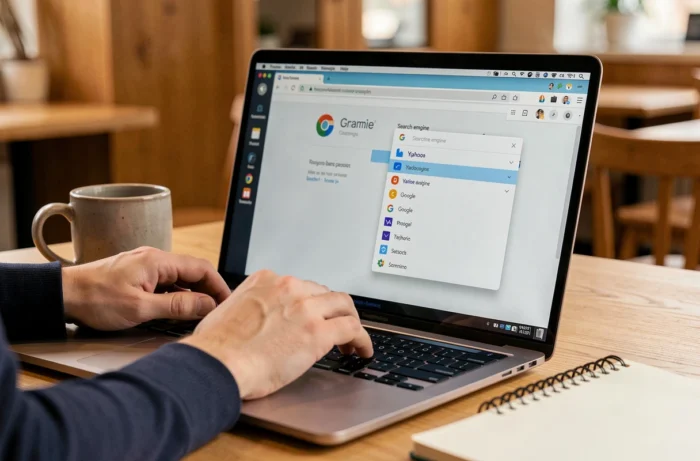
Once the lock is lifted (policy removed, extension uninstalled), the modification in the settings works normally. Open chrome://settings/search. In the “Search engine used in the address bar” menu, select Google, DuckDuckGo, or any other desired engine.
To remove Yahoo from the list of available engines, click on “Manage search engines and site search.” Locate Yahoo in the list, click on the three dots to the right, and select “Remove.” Yahoo can only be removed from the list if it is no longer set as the default engine, so be sure to change the default engine before attempting removal.
Resetting Chrome without losing data
If the problem persists despite the previous steps, a partial reset of Chrome remains an option. In chrome://settings/reset, choose “Restore settings to their original defaults.” This operation resets the homepage, search engine, pinned tabs, and disables all extensions. It does not delete bookmarks, history, or saved passwords.
Warning: if a system policy is still active in the registry, the reset of Chrome will be overwritten at the next launch. Removing the policy remains the non-negotiable prerequisite.
Targeted antimalware scan for persistent redirections
When neither extensions nor visible policies explain the redirection, a program installed at the system level may inject registry keys at each Windows startup. Classic scanning tools do not always detect these programs as they are not technically viruses but “potentially unwanted programs” (PUP).
A scan with a tool specialized in detecting PUP (Malwarebytes, AdwCleaner) usually identifies the responsible program. After removal, check the registry and chrome://policy one last time to confirm that the policy keys do not reappear.
- Run the scan in safe mode to prevent the rogue program from restarting during the analysis.
- After cleaning, restart in normal mode and open Chrome: the search engine should be modifiable.
- Schedule regular scans to detect any silent reinstallation of PUP via free software downloaded from unofficial sources.
The pattern is almost always the same: a free software downloaded outside its official site includes a third-party installer that adds a Chrome extension and a registry policy. Removing Yahoo from Chrome then involves addressing the source program, not the symptom in the browser. As long as the third-party program remains installed, any manual fix will be overwritten.